
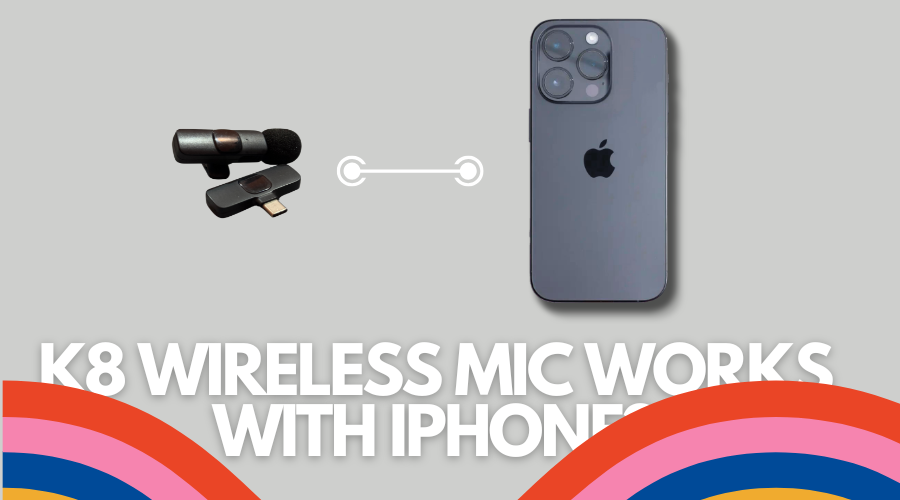
The K8 wireless microphone comes with extra cable/switches for both Android and iPhone devices. So, yes, the K8 wireless microphone works with an iPhone. However, it has a USB-C port as the default port for connectivity.
The K8 wireless microphone is an excellent collar mic for YouTube videos, interviews, voiceovers, and vlogging. It’s a low-priced, wireless collar microphone for beginners who don’t want to invest much in the camera gear just yet.
We’ve thoroughly tested the K8 wireless microphone. Turns out, it did very well in the distance and voice sharpness tests. Most low-budget collar microphones give distortion at some distance, but this one was impressive.
This collar mic has been quite handy for vlogging purposes as well. So, if you’re into vlogging with an iPhone, you can get yourself this K8 wireless microphone to crank it up a notch.
We previously tested whether or not the K8 wireless microphone works with Android phones. It works just fine.
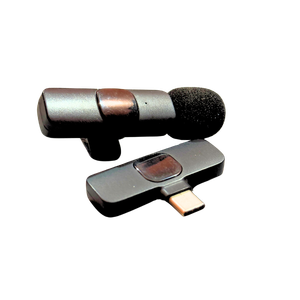
K8 Wireless Microphone
- Plug-and-play, no adapters required
- Crystal-clear sound with noise reduction
- Works with both Android and iPhones
- Up to 5 hours of runtime
- Compact and portable microphone design
As an Amazon Associate I earn from qualifying purchases.
Here are the steps involved in connecting the K8 wireless microphone to an iPhone:
How to Connect the K8 Wireless Microphone with an iPhone
It’s a plug-and-play wireless microphone. Here’s how you can connect the K8 wireless microphone to your phone:
Step #1: Add the iPhone cable/switch (Optional)
The K8 wireless microphone comes with two extra switches for iPhone and Android devices. This microphone has a USB-C port, so phones with a USB-C port don’t need to add the switch.
If your phone has a Type-C port, you can go directly to step two. In this case, you need to opt for the iPhone pin/switch and attach it to the receiver.
Step #2: Connect the receiver to the phone
Connect your receiver to your phone. All you need is to simply plug the receiver into the phone.
Use the appropriate adapter if you’re using a non-Type-C Android phone or an iPhone.
Since you’re an iPhone user, go ahead with the iPhone switch.
Step #3: Press the power button
Once the receiver is connected to the phone, turn on the microphone. The power button is on the transmitter. Give it a few seconds to connect with your phone.
Step 4: Wait for the green light
The red light on the transmitter (collar mic) means the receiver isn’t properly connected to the transmitter.
Once both devices are properly connected, the light on the transmitter will turn green.
Here we go. You have now successfully connected the K8 wireless microphone to your iPhone.
K8 Wireless Collar Microphone
- Affordable pricing
- Easy to use for beginners
- Best for interviews & vlogging
- Good-quality noise cancellation
As an Amazon Associate I earn from qualifying purchases.